


Getting Ready for Your New Computer
Getting a new computer should be a fun experience, but making sure all of your data gets moved from your old computer to the new one can be a stressful experience. The directions and videos below are designed to help make this easier with the use of Google Drive.
Step 1 - Move your files into your Google Drive
Watch the video for Google Drive app OR follow the picture instructions below:
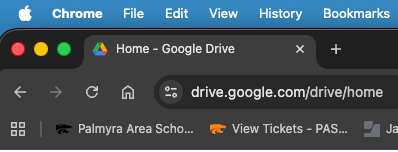
1. Make sure all needed files are backed up to Google Drive. If they are not, go to drive.google.com and sign in with your school account:
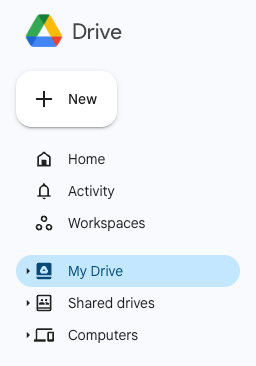
2. Click “My Drive” in the left pane to select it and then click “+ New”:
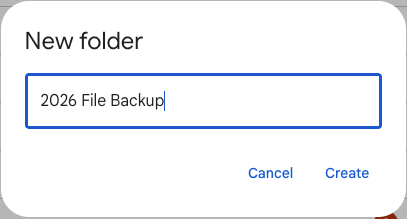
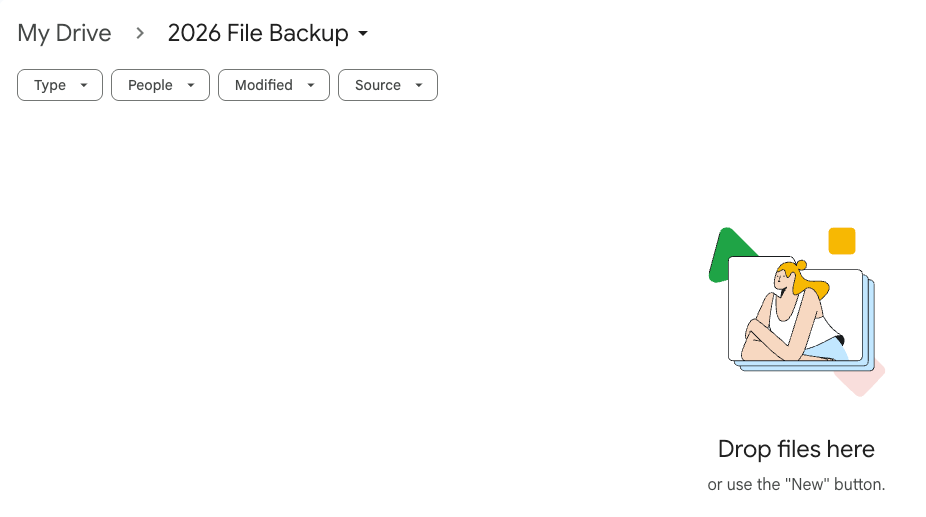
3. Create a new folder with a meaningful name (ex. “2026 File Backup”):
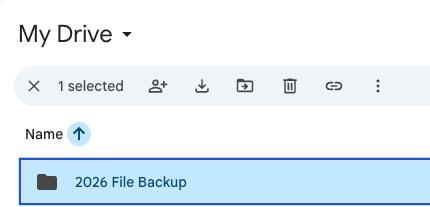
4. Double-click the new folder in your Drive’s list to drill down into the new folder:
5. Drag and drop all locally stored files (Desktop, Documents, Downloads, Pictures, Videos, etc.) you want to back up into this new folder to start uploading. You can create nested folders for better organization.
Step 2 - Export your Bookmarks/Favorites from your Web Browser
- Safari Users
- Open Safari
- Select "File" > "Export Browsing Data to File..."
- Select "Bookmarks" and any other options you would like to export
- Select "Download"/”Export” > Select the file path location, click “Save”
- Be sure to save the exported file to your Google Drive so you can retrieve it later
- Chrome Users
- Open Chrome
- Select "Bookmarks" > "Bookmark Manager"
- In the top right corner, click the icon with 3 vertical dots > Select "Export Bookmarks" > Select the file path location to save your file
- Be sure to save the exported file to your Google Drive so you can retrieve it later
I have my New Computer...Now What?
Step 1 - Sign into Google Drive via web browser to transfer data to the new computer.
Step 2 - Drag & drop or copy files from Google Drive to your new computer.
Step 3 - Sign into your browser to sync your Bookmarks (see steps below).
Step 4 - Use the Self Service app to install any additional software you may need.
Import your Bookmarks/Favorites to your Web Browser
- Safari Users
- Open Safari
- Select "File" > "Import Browsing Data from File or Folder..." > "Choose File or Folder..."
- Select the bookmark file export that was created during the export step above and click "Import"
- You should receive an "Import Successful" message
- Click "Done"
- Verify that your bookmarks are available
- Chrome Users
- Open Chrome
- Select "Bookmarks" > "Bookmark Manager"
- In the top right corner, click the icon with 3 vertical dots > Select "Import Bookmarks"
- Select the bookmark file export that was created during the export step above and click "Open"
- Verify that your bookmarks are available (they may be in a new bookmark folder titled "Imported")

