How to Change the Theme in MS Teams
Last updated: Aug 27, 2020
4321
views

How to Change your Theme in MS Teams
To change the icon or upload a picture for each of your classes in MS Teams, follow these simple directions:
-
Open the MS Teams app on your laptop.
-
Click “Teams”

-
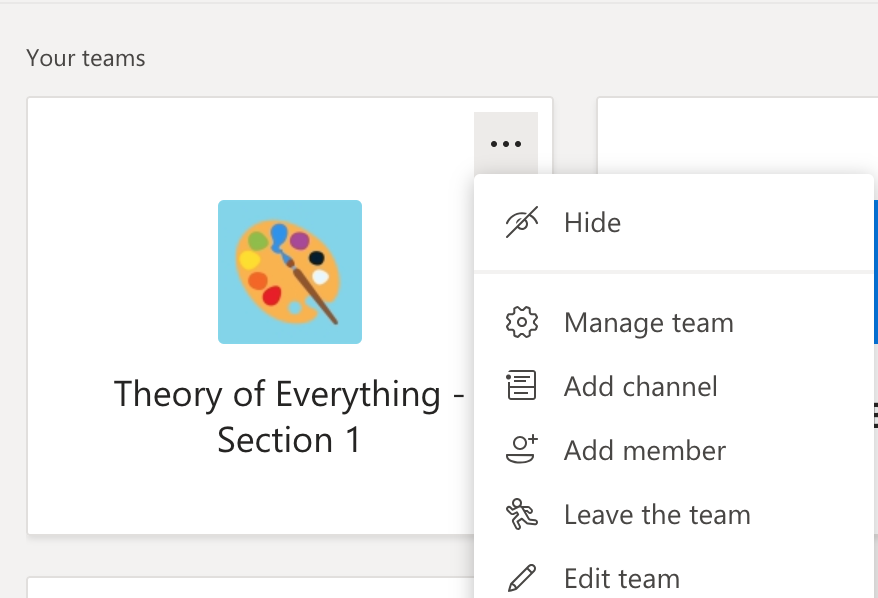
Click the 3 dots … by the Team that you wish to change and then click “Manage Team”
-
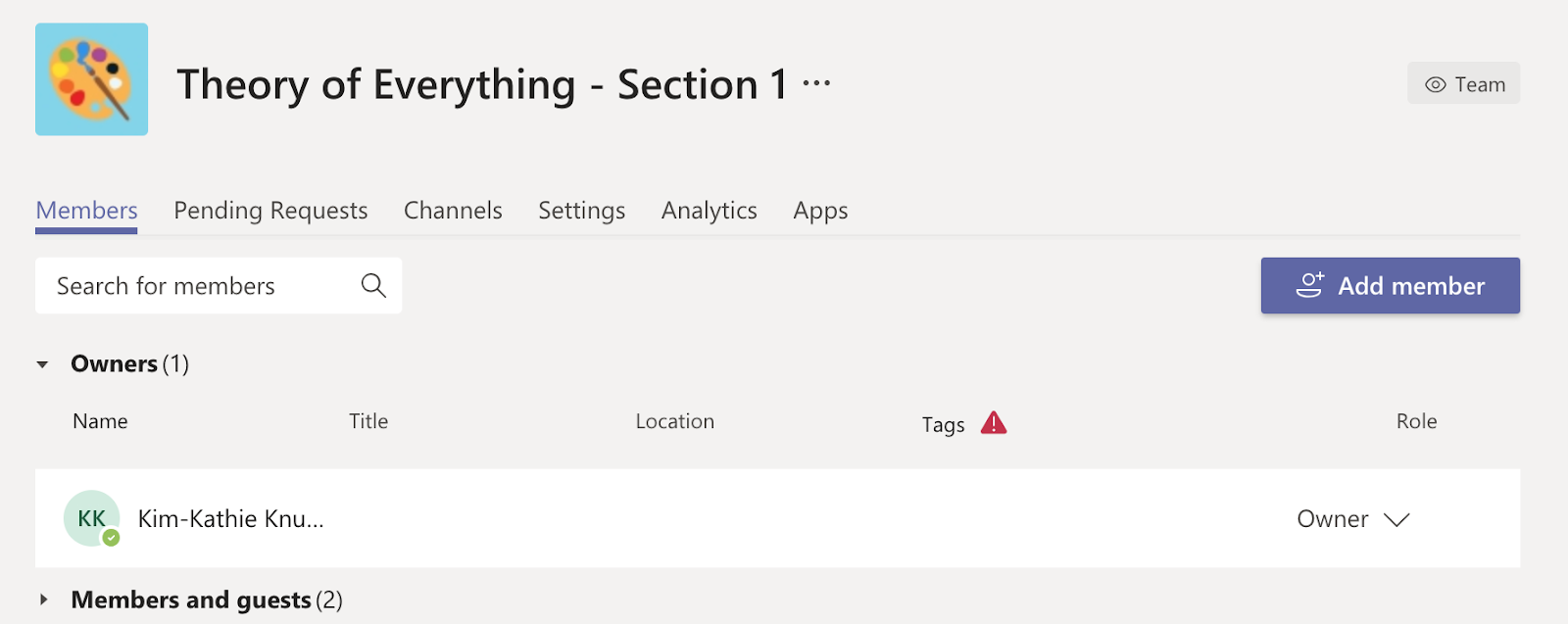
Click “Settings”
-
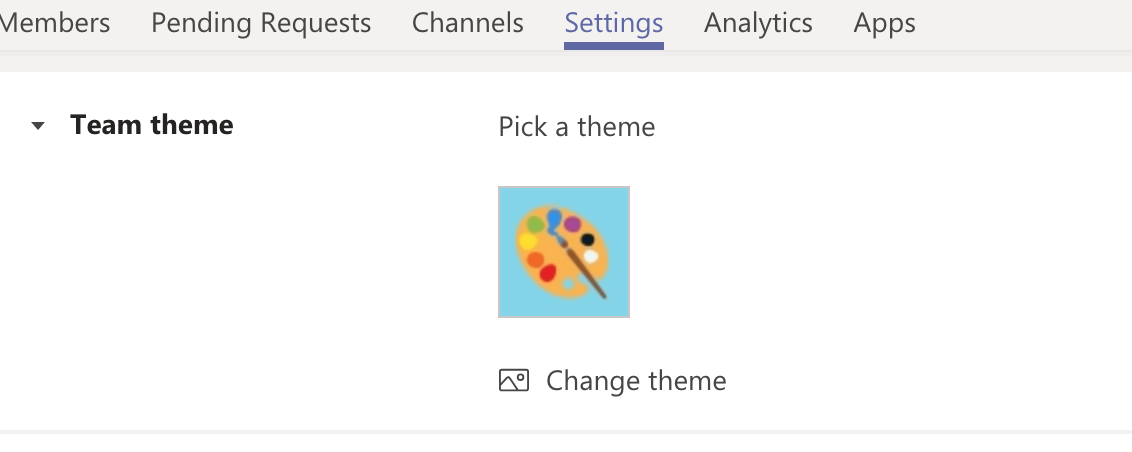
Click “Team Theme” and then “Change Theme”
-
You can now select a theme. There are options under grade level for Primary, Secondary, and Post-Secondary as well as content area options under Subject. Choose one and then click “Update”

-
If you choose “Upload”, you can also upload a picture